Help & tutorials
Find your next step.
Simple guides for the extension, answers to common questions, and a little help when something gets stuck.
17 topics
Extension tutorials
Open a topic for the steps and a screenshot of the controls.
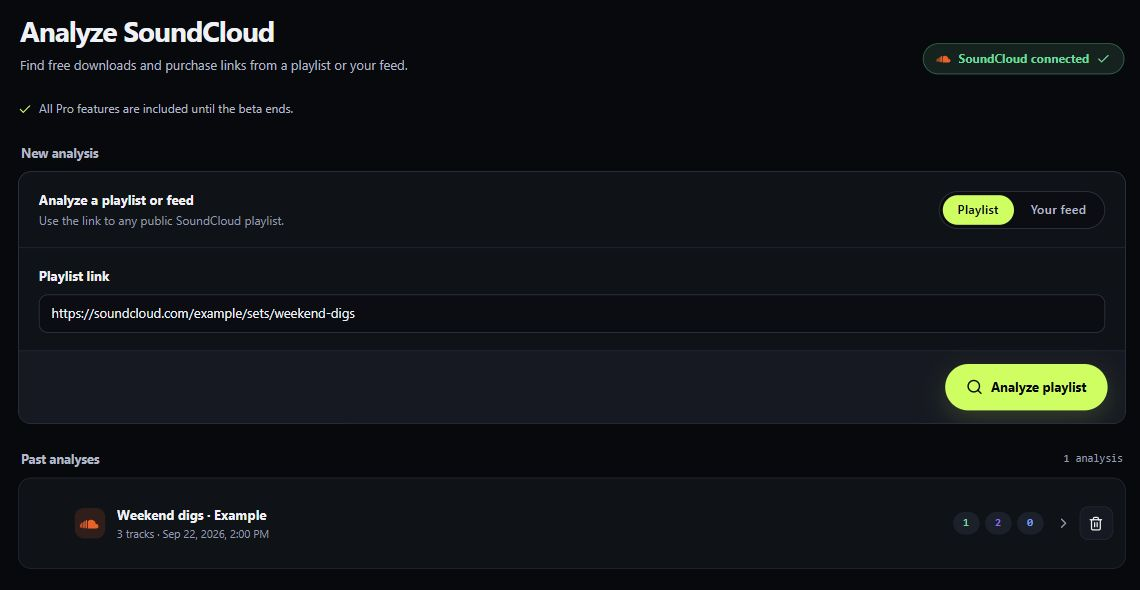
Analyse a playlist or your feedFind free downloads, purchase links and tracks that need a closer look.
- Open SoundCloud analysis and connect your SoundCloud account if prompted.
- Choose Playlist and paste a public SoundCloud playlist link, or choose Your feed and set a number of days or tracks.
- Select Analyze playlist or Analyze feed. Wait for the results to appear.
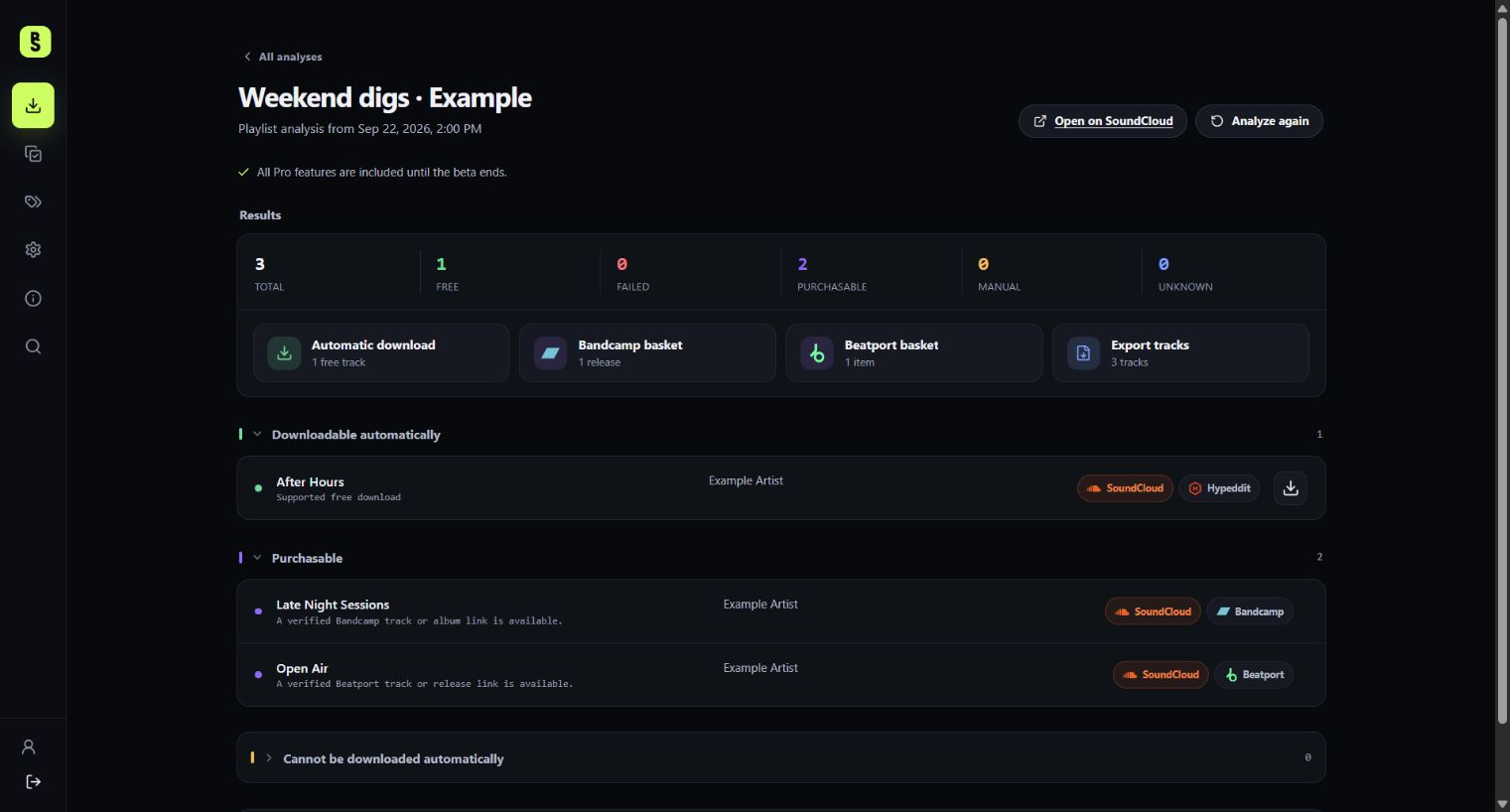
- Open the result groups to review the tracks. Use Automatic download for supported free tracks, or a basket action for purchase links.
Feed analysis includes up to 200 recent tracks per run. Saved analyses can be reopened from SoundCloud analysis.
Run an automatic downloadDownload the supported free tracks from your analysis in one run.
- Analyse a playlist or your feed, then select Automatic download in the results.
- Read the notice and select Start download. Sign in to SoundCloud in this Chrome profile, and to Spotify if prompted.
- Allow the requested provider access. Beatseeker opens temporary tabs to work through supported download gates; avoid using those tabs while the run is active.
- Follow progress in Runs. If the run pauses for blocked popups, select Open gate, allow popups for that provider, then return and select Resume.
- Review completed and failed tracks. Your files are saved inside Chrome’s download location.
Some gates require actions such as following an artist or submitting your configured form details. Review your settings before starting. Unsupported or unsuccessful tracks may need a manual download.
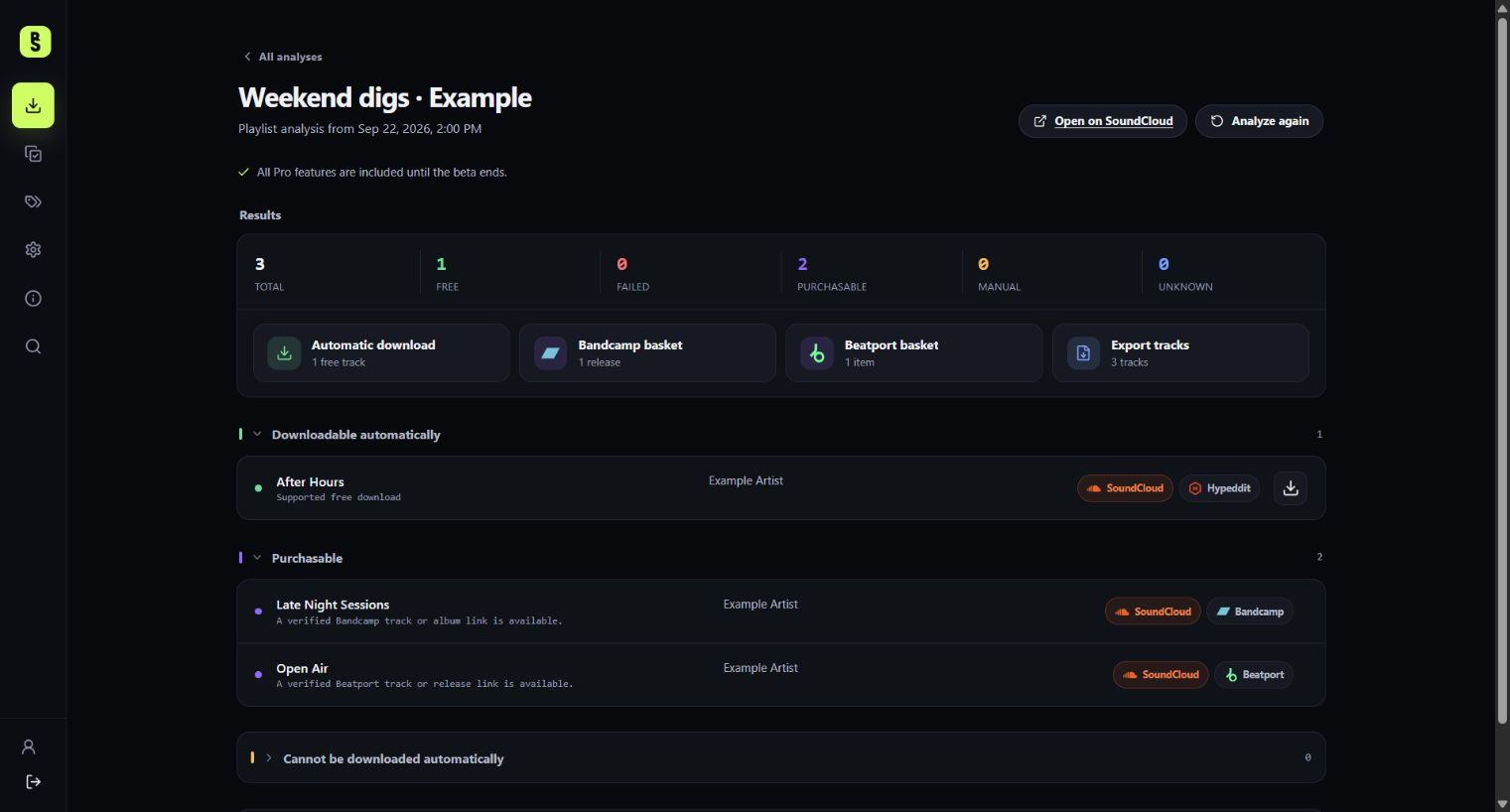
Add tracks to a purchase basketPrepare Bandcamp or Beatport baskets, then review the order on the store.
- Sign in to Bandcamp or Beatport in the same Chrome profile. Under Settings → Connections, check the relevant browser session.
- Analyse your playlist or feed. If basket support for that store is available in your extension, a Bandcamp basket or Beatport basket action appears for eligible purchase links.
- When Bandcamp baskets are available, check Settings → Purchases first if you want to change the tip added to each new release.
- Select the basket action and allow the requested store access. Follow the results and review any items marked as needing attention.
- Select Open basket. Check the releases, prices and quantities, then complete checkout yourself on the store.
Basket support depends on the installed extension and your account access. If no basket action is available, open the track’s store link yourself. Beatseeker never completes payment. A Bandcamp purchase may refer to a whole release, so review the store’s basket before buying.
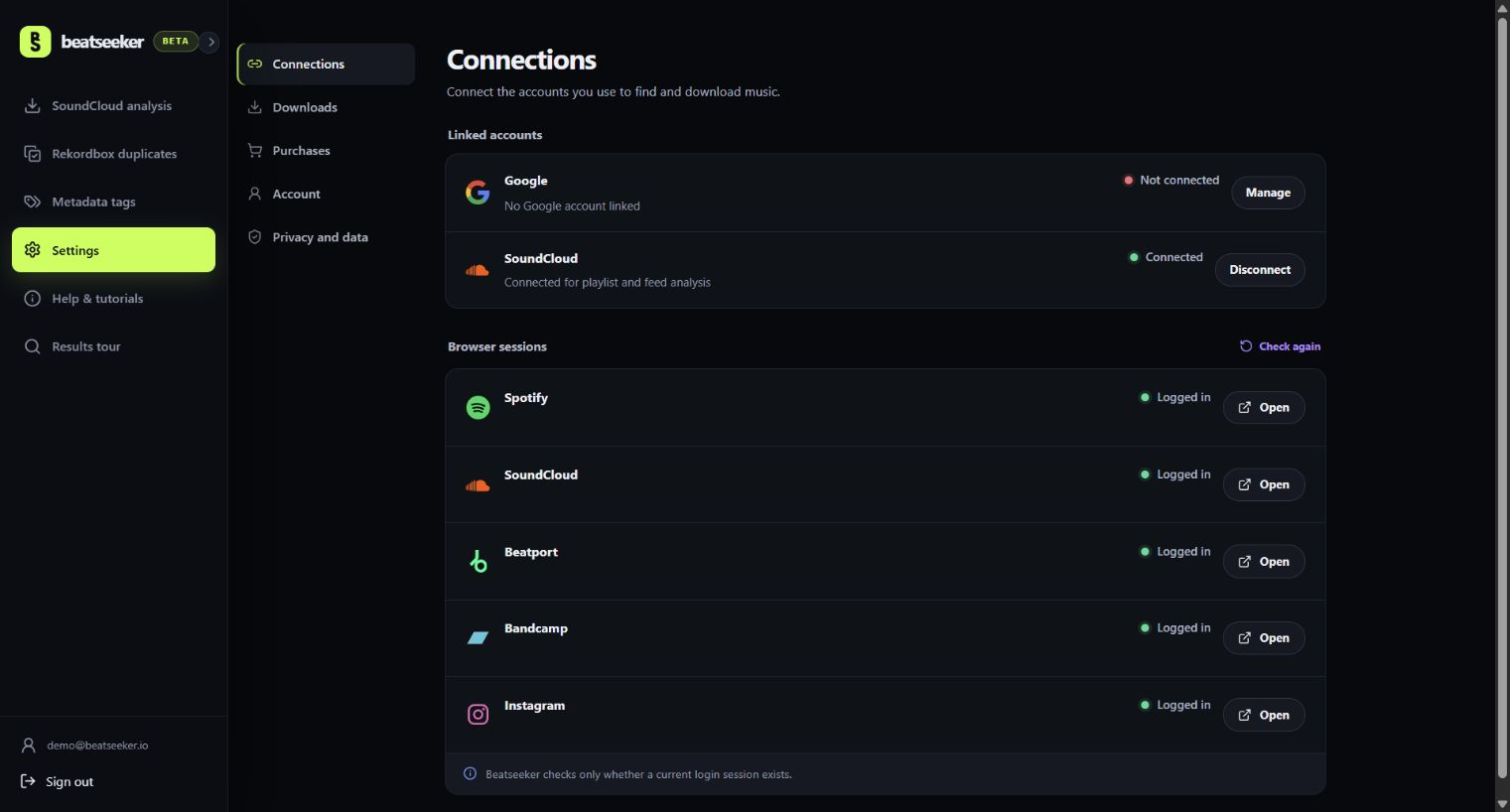
Set up accounts, connections and settingsConnect your music services and choose how Beatseeker works for you.
- Open the extension and select Continue in browser. Sign in to a verified Beatseeker account and approve the extension in the website tab.
- Open Settings → Connections and connect the SoundCloud account whose playlists or feed you want to analyse.
- In Browser sessions, sign in to the services your download gates or baskets need. Use Check again to refresh their status; allow the session check if Chrome asks.
- Open Settings → Downloads to choose download folders, duplicate skipping and optional metadata updates. Review the name, email and SoundCloud comment used by download forms.
- Use Settings → Account to choose the interface language. Return to Help & tutorials whenever you want to start the guided tour again.
Connecting SoundCloud for analysis and signing in to SoundCloud in Chrome are separate steps. Download gates may need the browser session as well.
Find duplicate audio filesCompare the audio in a folder, or include Rekordbox playlist usage in your review.
- Open Rekordbox duplicates. Choose Compare a folder for a music folder, or Rekordbox library to include an exported Rekordbox XML collection.
- Select Choose music folder, or Choose local Rekordbox root in library mode, and allow read access to the folder containing your audio. In library mode, also select Choose Rekordbox XML and open your collection export.
- Select Find duplicates. The first analysis of a large folder can take time while Beatseeker compares audio fingerprints.
- Review each duplicate group, file details and playlist usage before deciding which copy to keep. Matching settings let you adjust how similar files must be.
- Select Export CSV to keep a report of the analysis. Manage any files you decide to remove yourself.
Library mode compares only collection tracks found beneath the selected folder. Folder mode compares all supported audio beneath it. This tool does not delete music. Audio and XML stay on your device; local fingerprint caching can speed up later runs.
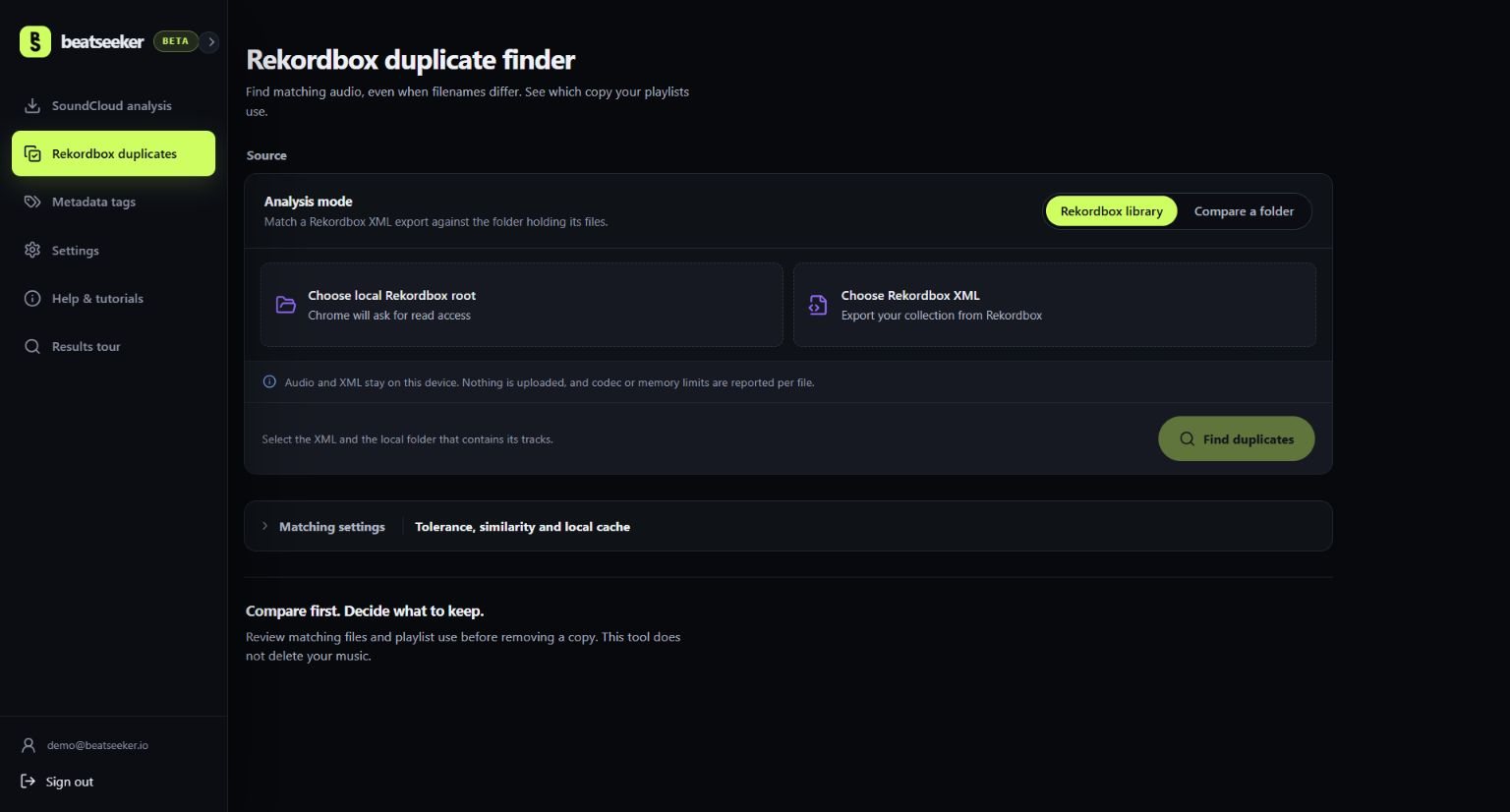
Update Artist and Title tagsTurn existing filenames into consistent tags and review each change before writing.
- Open Metadata tags, select Choose music folder and allow access to the folder you want to edit.
- Select Scan metadata. This reads the existing tags and creates suggestions without writing changes.
- Review each file. Assign filename blocks to Artist, Title or Ignore, or edit the Artist and Title fields directly.
- Select the files you want to update. Both Artist and Title must be filled in; Select ready on page selects valid entries on the current page.
- Select Apply (with the selected file count), review the confirmation and choose Write and verify. Check the result and any reported errors.
The updater changes Artist and Title in the selected original files. MP3, M4A, FLAC, OGG, OPUS, WAV and AIFF are supported; files above 512 MB exceed the browser engine limit.
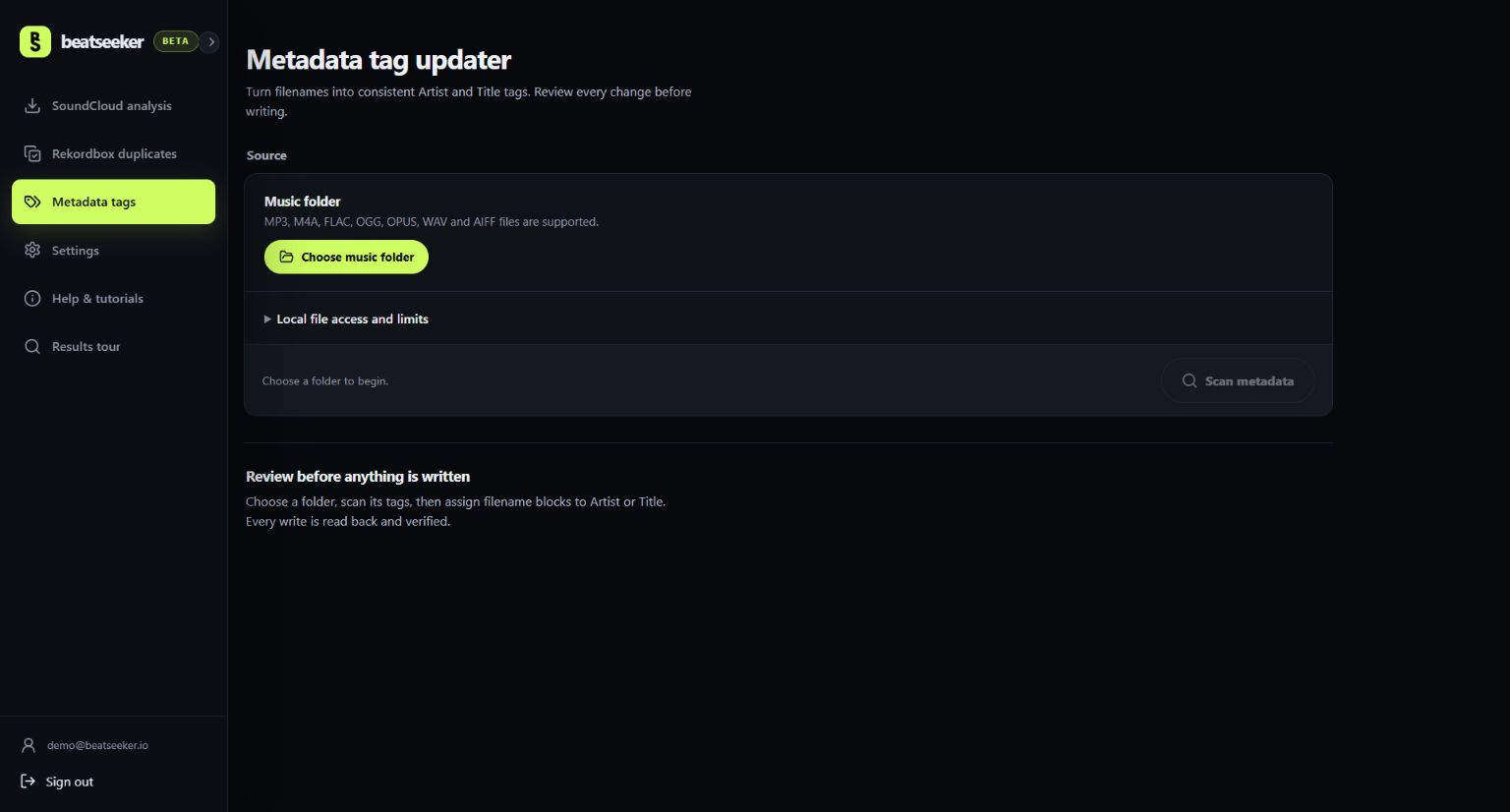
Enable automatic metadata updatesUse SoundCloud information to tag newly downloaded audio automatically.
- Open Settings → Downloads. Under After automatic downloads, turn on Update metadata tags.
- Wait for the metadata folder to be prepared. If Create folder is shown, select it to create the small temporary setup file.
- Select Allow folder access. In Chrome’s folder picker, open your download location and select the configured Beatseeker root folder, then allow editing.
- Start an automatic download and keep the Beatseeker app open while tags are updated. Waiting files can resume when you reopen the app.
- Check the cleanup status in Settings → Downloads. Reconnect folder access if needed, then use Retry cleanup for an error. If Review file appears, inspect the proposed tags before choosing Apply to reviewed file.
Select the configured child folder, not the main Downloads folder. Artist and Title are replaced from the analysis; other supported tags are filled only when missing. Renaming is a separate Rename downloaded files option. Audio keeps its original format and files inside ZIPs are not edited.
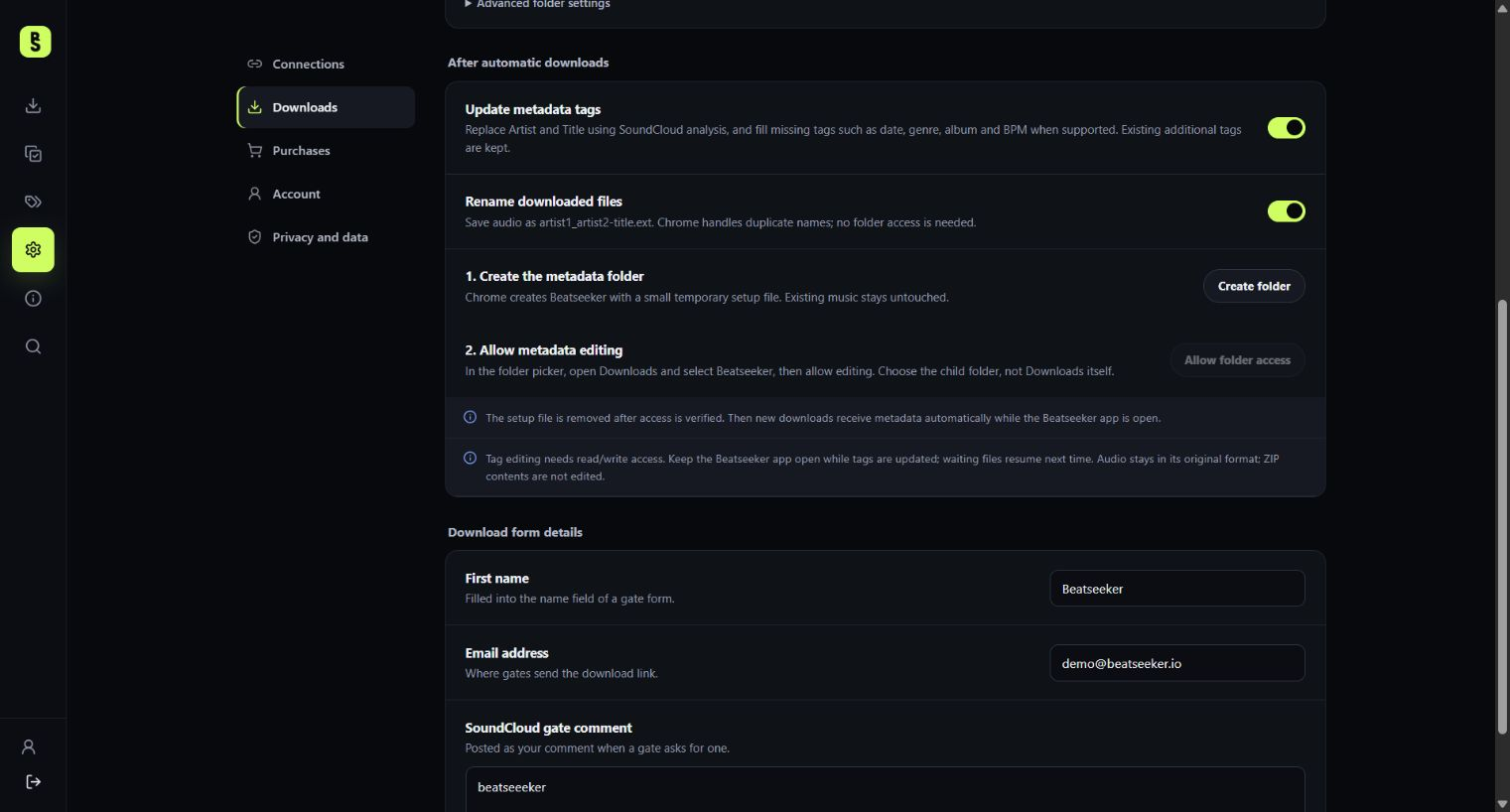
Create your own folder structureOrganise new automatic downloads by playlist, feed, date or a nested pattern you choose.
- Open Settings → Downloads → Download folders and expand Advanced folder settings.
- Set Root folder to a relative path inside Chrome’s download location, for example Beatseeker or Music/Beatseeker. Do not enter a full drive path.
- Set Subfolder naming with {source} for the playlist or feed name, {type} for its kind and {date} for the run date. For example: {date}/{source}.
- Check the preview and select Save folder settings. Use / for nested folders, or leave the pattern empty to save directly in the root folder.
- New automatic downloads use this structure. To use another drive, select Open Chrome download settings and change Chrome’s download location.
The default is Beatseeker/{source}. Existing files are not moved. Changing Chrome’s download location affects other Chrome downloads too. Reconnect metadata folder access after changing the root folder or Chrome’s download location.
Common questions
Installation, accounts, permissions, and troubleshooting.
Is Beatseeker free during the beta?All current Pro features are included for verified accounts until the public beta ends.
- Create a Beatseeker account and complete email verification, or sign in with Google.
- Approve the extension from its Continue in browser sign-in flow to use your account there.
- Use the current beta features without a paid subscription. Billing and advertising are disabled in the beta.
Beta access is temporary. Features and plans available after the beta may differ.
Why can’t I sign in or connect SoundCloud?Check your Beatseeker account, the SoundCloud connection and the browser session separately.
- For Beatseeker access, sign in on the website and complete any email verification requested. Use Forgot password? if you need a reset link.
- Return to the extension and use Continue in browser to approve access if it is still signed out.
- For analysis, open Settings → Connections and connect SoundCloud. Confirm the correct SoundCloud account in the browser tab.
- For download gates, also sign in to the required services in this Chrome profile, then refresh Browser sessions with Check again.
Why can’t every SoundCloud track be downloaded?Beatseeker uses the download or purchase links available for a track.
- Check the result group: a track may have a supported free download, a purchase link, an unsupported link or no available download information.
- Open the track’s SoundCloud or linked provider page when a manual step is needed. If it is purchasable, review the store link or basket action.
- Use the track’s report action if a supported download fails or you want to report an unsupported provider.
Beatseeker does not create a free download for a track that has none. The provider determines the available audio file and its quality.
What should I do when a download pauses or fails?Use the message on the run to resolve the specific problem.
- Read the affected track’s message under Runs. Check that you are signed in to the services the gate requires.
- If popups are blocked, select Open gate and allow popups for that provider in Chrome. Return to Beatseeker and select Resume.
- For a failed track, open its linked page to check whether a manual step is needed. Review the report action if the supported automation still fails.
Avoid closing or using the temporary automation tabs during a run. A paused track waits until you resume or cancel it.
Why are previously downloaded tracks skipped?The download history helps avoid downloading the same track again.
- Open Settings → Downloads and check Skip tracks that have already been downloaded.
- Leave it enabled to exclude tracks in your download history from new runs. Turn it off when you intentionally want to download them again.
- Enable Track manual downloads if you want the next music file downloaded from a tracked manual page to enter that history too.
Download history is separate from the duplicate finder, which compares the audio files in a folder.
Where are my downloads, and why are tags still waiting?Downloads and metadata editing use different kinds of folder access.
- For automatic downloads, check Settings → Downloads → Download folders for the path. By default, each playlist or feed gets a folder inside Chrome downloads / Beatseeker. Manual downloads use Chrome’s chosen location.
- If the file downloaded but tags are waiting, keep Beatseeker open and allow access to the configured child folder under the metadata settings.
- After changing the root folder or Chrome’s download location, reconnect folder access and check the cleanup message. Use Retry cleanup when an error is shown.
Downloading and automatic filename cleanup do not require folder access. Metadata editing does; it cannot edit files inside ZIP archives.
Are my local music files uploaded?The duplicate finder and metadata tag updater process your selected files on this device.
- Choose only the music folder you want to analyse or edit. Chrome asks for read access for duplicate analysis and read/write access for tag editing.
- For the duplicate finder, turn off Reuse unchanged fingerprints if you do not want that run to save folder references and fingerprints in its local cache.
- Use Clear saved cache in the duplicate finder’s Matching settings to remove those stored references and fingerprints.
This describes the local library tools. Website sign-in, SoundCloud analysis and provider downloads use their connected online services.
Can I save or export my analysis results?Reopen a saved analysis or export selected result groups.
- Open a saved run in SoundCloud analysis and select Export tracks.
- Choose TXT, CSV or SoundCloud, then select the result groups you want to include.
- For a SoundCloud export, connect your account and enter the playlist name. Complete the export to create a private playlist.
Track exports contain the analysis results and links; they do not download audio.
How do I report a broken download or basket action?Send the affected track and relevant diagnostics from its report action.
- Find the failed download, basket item or unsupported provider in the extension and select its report action.
- Review the confirmation and diagnostics before selecting Send report. Logs are redacted before leaving your browser.
- If the same track fails again with new diagnostics, use its report action to review and send an updated report.
The report is sent only after you confirm. Recent diagnostics are also available in Settings → Privacy and data.
Still need a hand?
Send the track link, the step that stopped, and the message you saw. We’ll help you work it out.